Covers Manual pp. 4–17 Manual pp. 72–73 Manual pp. 80–81 Guidebook pp. 16–31.
Getting started#
The opening and the title#
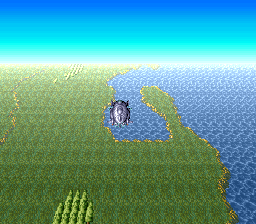
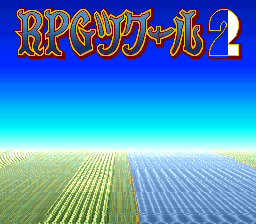
Switched on, RT2 shows a few boot screens. Then comes the opening demo: a flight low over a world map, drawn in the Super Famicom's Mode 7, which the air vehicle also uses in play. The flight ends on the RPGツクール2 logo. Press START to bring up the title screen with its copyright lines, and START again for the top menu.
The top menu#
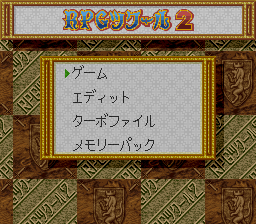
| Entry | Japanese | What it does |
|---|---|---|
| Game | ゲーム | Plays a game: your own, a test run of it or the sample game, and copies or deletes play saves (below; Playing a game) |
| Edit | エディット | The ten editors where a game is made (below) |
| Turbo File | ターボファイル | Saves, loads and deletes whole games on a Turbo File Twin (below) |
| Memory Pack | メモリーパック | The same with a Satellaview memory pack in the cartridge's slot |
The two storage entries are covered below. With no Turbo File Twin plugged in, Turbo File does nothing visible. With no memory pack in the slot, Memory Pack opens its page, but Load finds nothing. Manual pp. 6–7
The Game menu#
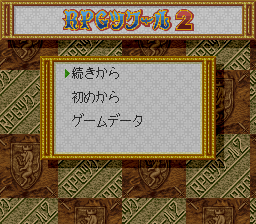
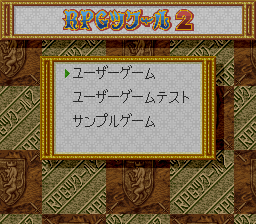
| Entry | Japanese | What it does |
|---|---|---|
| Continue | 続きから | Lists the three play saves and resumes one. Each shows what it is a save of (Test テスト, User ユーザー or Sample サンプル) and up to four party members with their levels |
| Start | 初めから | A new game: User Game ユーザーゲーム (yours, as a player sees it), User Game Test ユーザーゲームテスト (yours with the test tools) or Sample Game サンプルゲーム |
| Game Data | ゲームデータ | Copy コピー a play save to another slot, or Delete 削除 one |
User Game Test is the same game as User Game, with test play's tools added to the Settings command: invincible heroes, random battles off, a switch editor, the party's position on screen, and walking through walls (Test play). Use it while you build. Use User Game to see the game as a player will.
Sample Game always plays the sample game from the ROM, whatever you have done to the copy in the editor (below).
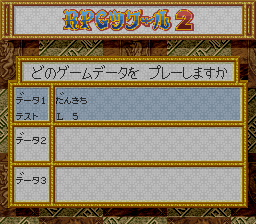
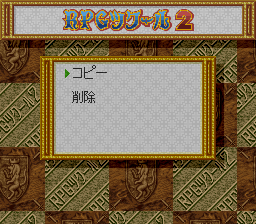
There are three play saves, shared by every kind of play. A test-play save also remembers whether the heroes were invincible and whether monsters appeared. The play saves stay on the cartridge alongside the game you are editing.
The Edit menu#
Edit エディット opens the editors: ten entries in two columns. Each one edits one part of the game, and each saves on its own.
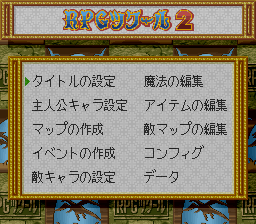 12345678910
- 1 Title settings タイトルの設定 the game's title (two lines) and the three credit lines, all shown at the ending
- 2 Hero settings 主人公キャラ設定 the 12 heroes, the three vehicles, the starting party and the 11 BGM slots
- 3 Map making マップの作成 the field (the world) and up to 128 maps, sharing 300 screens
- 4 Event making イベントの作成 the people and objects on each map, four pages each; 43,960 bytes for all
- 5 Enemy settings 敵キャラの設定 32 field, 32 dungeon and 32 event enemies (bosses)
- 6 Magic 魔法の編集 64 spells, each with one of 20 effects
- 7 Items アイテムの編集 127 items of 15 kinds
- 8 Enemy maps 敵マップの編集 which enemies appear on each screen, and how often; the battle test
- 9 Config コンフィグ the editor's music, stereo or mono, the cursor speed
- 10 Data データ erase the user game, load all the sample data, choose memory-pack data
| Entry | Japanese | What you set there | Chapter |
|---|---|---|---|
| Title Settings | タイトルの設定 | The game's title (two lines) and three credit lines: scenario design, map design, special thanks | The database |
| Hero Settings | 主人公キャラ設定 | The 12 heroes, the three vehicles, the starting party, gold and position, and the 11 BGM slots | The database |
| Map Making | マップの作成 | The field (the world map) and up to 128 maps for towns, castles and dungeons | Maps and the field |
| Event Making | イベントの作成 | The people and objects on each map and what they do | Events |
| Enemy Settings | 敵キャラの設定 | 96 enemies: 32 for the field, 32 for dungeon maps, 32 fought only through events | The database |
| Magic Editing | 魔法の編集 | 64 spells, shared by heroes and enemies | The database |
| Item Editing | アイテムの編集 | 127 items in 15 kinds | The database |
| Enemy Map Editing | 敵マップの編集 | Which enemies appear where and how often, the battle backgrounds, and the battle test | Maps and the field |
| Config | コンフィグ | The editor's music, stereo or mono, cursor speed | Below |
| Data | データ | Erase everything, load the whole sample game, pick a memory pack's sound or graphics | Below |
Every editor page has a gold header bar with its name. Most show R:メニュー at the right: R opens that editor's menu (below). Manual pp. 14–17
The controls#
The buttons follow the Japanese convention: A confirms and B cancels. Manual p. 5
| Button | In the menus and editors | In a game |
|---|---|---|
| A | Confirm; on the keyboard, type the character under the cursor | Open the command window; confirm; get off the land vehicle, land the air vehicle |
| B | Cancel, go back a page | Cancel; in test play, hold it to walk through walls |
| ↑ ↓ ← → | Move the cursor; change a number | Walk |
| R | Open the editor's R menu; on the keyboard, katakana | — |
| L | On the keyboard, the kanji | — |
| X | On the keyboard, add or change a voicing mark | Talk, without opening the command window Manual pp. 74–75 |
| Y | On the keyboard, hold it to move along the text with the d-pad without erasing | — |
| SELECT | On the keyboard, switch between insert and overwrite | — |
| START | On the keyboard, finish (and choose whether to keep the text) | — |
| L + R + START + SELECT | Back to the top menu | Back to the top menu (unsaved play is lost) |
Menus ignore a button pressed in the first moment after they appear. If a press seems lost, press again.
Typing names and text#
Names, titles and messages are typed on one keyboard page. Its tabs show the character set, the field being typed, and whether typing inserts or overwrites. The legend on the right lists the buttons.
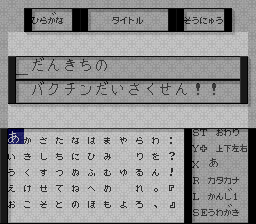 123456789101112
- 1 Character set ひらがな the set in use: hiragana, katakana, kanji sets, symbols
- 2 What is named タイトル here the game title
- 3 Insert mode そうにゅう characters are inserted; SELECT switches to overwrite (うわがき)
- 4 The text だんきちの バクチンだいさくせん!! the title, two lines; the bar is the text cursor
- 5 Characters the d-pad moves, A enters the character
- 6 Character cursor あ the character A will enter
- 7 Start ST おわり done
- 8 Y with the d-pad Y✣ 上下左右 move through the text: up, down, left, right
- 9 X X あ switch the character to its voiced form and back (か ↔ が); the label shows the other form
- 10 R R カタカナ to katakana
- 11 L L かんじ1 to kanji set 1, then the next sets
- 12 Select SEうわがき overwrite instead of insert
| Button | What it does |
|---|---|
| ↑ ↓ ← → | Move over the character grid |
| A | Type the character under the cursor |
| X | The voiced form of the character under the cursor and back (か ↔ が, は ↔ ぱ); its label in the legend shows the other form |
| R | Katakana; the tab at the top left names the set in use |
| L | The kanji, a set at a time (かんじ1 …) |
| Y + ↑ ↓ ← → | Move the cursor in the text without erasing anything |
| SELECT | Insert そうにゅう or overwrite うわがき; the top-right tab shows which |
| START | Finish: the program asks whether to keep the text |
What can be typed#
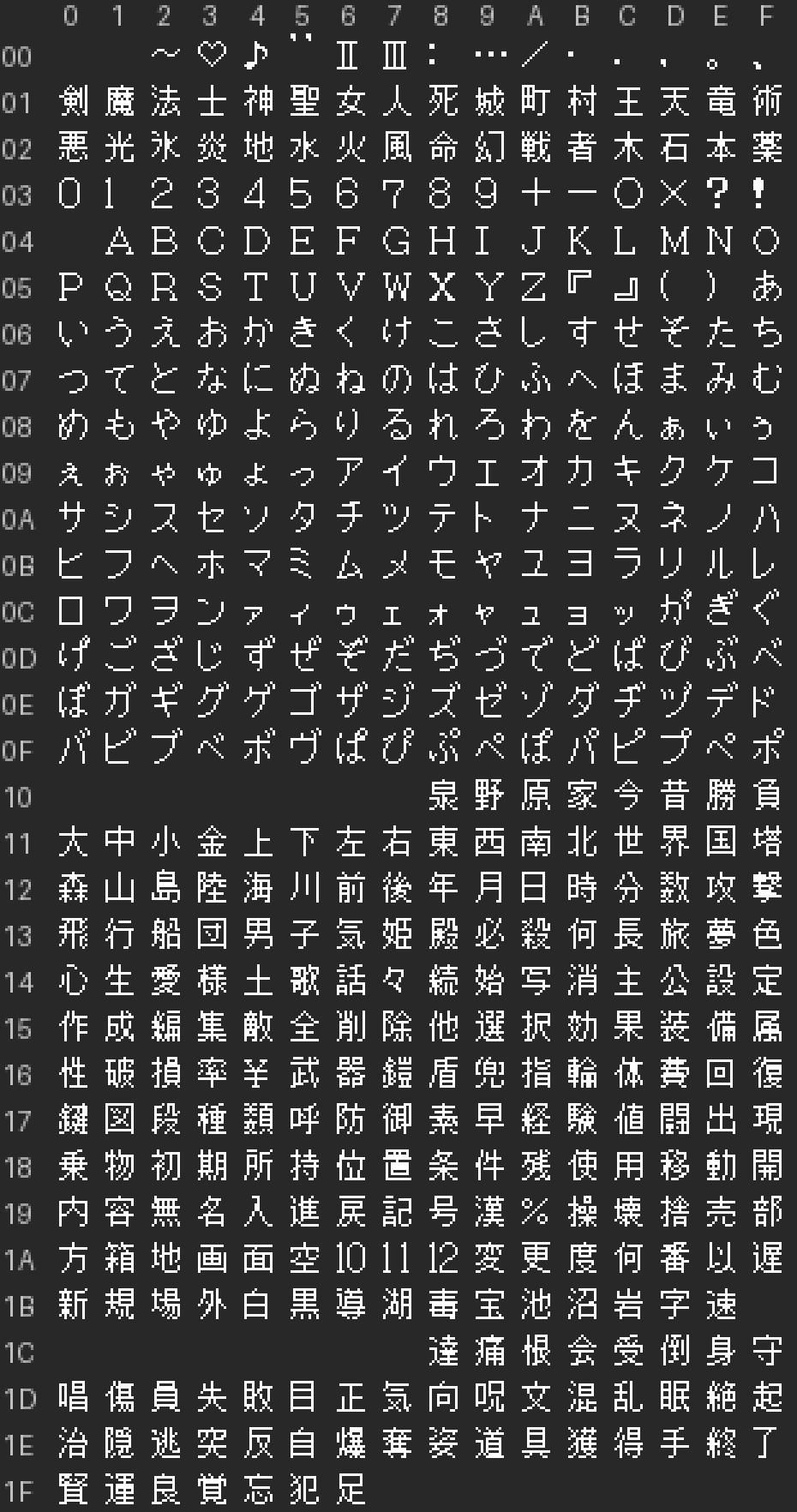
RT2 keeps text in a code of its own, a byte for most characters, so it has a fixed set:
- hiragana and katakana, with the small kana and every voiced form (が, ぱ, ヴ);
- the digits and the capital letters A–Z. There are no small Latin letters;
- a space and the marks ~ ♡ ♪ " Ⅱ Ⅲ : … / ・ . , 。 、 + ー ○ × ? ! 『 』 ( );
- 96 kanji, chosen for fantasy games and for place names. 32 come first: 剣 魔 法 士 神 聖 女 人 死 城 町 村 王 天 竜 術 悪 光 氷 炎 地 水 火 風 命 幻 戦 者 木 石 本 薬. Then 64 more: 泉 野 原 家 今 昔 勝 負 大 中 小 金 上 下 左 右 東 西 南 北 世 界 国 塔 森 山 島 陸 海 川 前 後 年 月 日 時 分 数 攻 撃 飛 行 船 団 男 子 気 姫 殿 必 殺 何 長 旅 夢 色 心 生 愛 様 土 歌 話 々.
A game written in English is possible in capitals only, with ー as a hyphen. The room for each kind of text is fixed:
| What | Room |
|---|---|
| Game title | 2 lines of 14 characters |
| Each credit line | 14 |
| Hero names | 5 |
| Item, spell, enemy and map names | 8 |
| A message | 4 lines of 14 |
The R menu and saving#
Each editor works on a copy of its data. What you change stays in that copy until you save it with R → Save. Revert goes back to the last save. The manual's advice to save often is sound: an editor's work is safe only once it is saved. Save before leaving an editor, and before a test run.
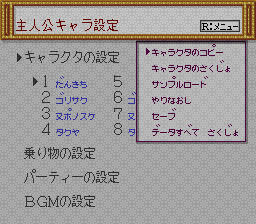 123456789
- 1 Hero settings 主人公キャラ設定 this R menu is the hero list's; each editor has its own
- 2 R menu R:メニュー R opens the menu, B closes it
- 3 The hero under the cursor 1 だんきち what the menu acts on
- 4 Copy キャラクタのコピー copy this hero, to paste over another
- 5 Delete キャラクタのさくじょ clear this hero, with no confirmation
- 6 Sample load サンプルロード load this editor's sample data
- 7 Undo やりなおし back to the last save
- 8 Save セーブ write this editor's data to the cartridge; each editor saves on its own
- 9 Delete all データすべて さくじょ wipe this editor's data
| Entry | Japanese | What it does |
|---|---|---|
| Sample Load | サンプルロード | Loads this editor's part of the sample game over yours (the items, say, or the enemies), and nothing else |
| Revert | やりなおし | Throws away the changes since the last save |
| Save | セーブ | Writes this editor's data to the cartridge |
| Delete All | データすべてさくじょ | Empties this editor's data |
| Copy | コピー | Copies a record (most editors) |
| Delete | さくじょ | Empties the record under the cursor (most editors); for heroes, maps and enemy maps it doesn't ask first |
Not every R menu has all six. Title Settings has Sample Load, Revert and Delete All, and no Save. The map list and the enemy-map list have Delete, Revert, Save and Delete All, but no Sample Load or Copy. Deeper in, R does the page's own job instead: inside a map's grid it moves to the side menu, on an enemy map's grid it picks the battle background, in an enemy map's screen it offers copy, paste and the battle test, and on an event page it changes the event's kind.
Saving one editor rewrites only its own part of the save, with a checksum for that part and one for the whole save. That is what the power-on check tests (below).
Config#
Config コンフィグ sets up the editor itself. Manual p. 72
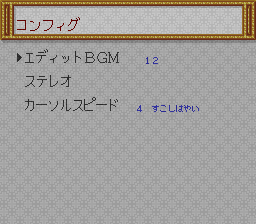
- Edit BGM エディットBGM: the song that plays while you edit, any of the 30 or none.
- Stereo / Mono ステレオ / モノラル: the sound output, for editing and for play. A game's Settings command can change it too.
- Cursor speed カーソルスピード: 1 (slow) to 5 (fast); 3 is normal.
Data#
Data データ works on the whole project. Manual p. 73
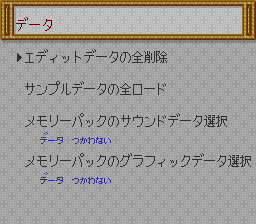
- Delete all edit data エディットデータの全削除 erases your game, every editor at once, after a warning. To empty one part only, use that editor's R menu.
- Load all the sample data サンプルデータの全ロード copies the whole sample game into the editors, over your game, after the same warning.
- Memory pack sound data and graphics data メモリーパックのサウンドデータ選択 / グラフィックデータ選択 choose extra songs or graphics from a memory pack. They show not used データ つかわない until a pack holds such data. RT2 was to receive these over the Satellaview's broadcasts. The sound data is the format that the music maker Ongaku Tsukuru Kanadeeru saves, so its songs could become RT2 BGM. No graphics data is known to survive (Music and sound, How it works).
The sample game#
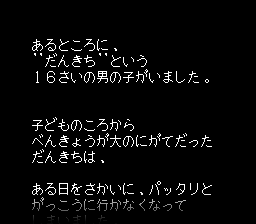
The ROM holds a complete sample game: だんきちのバクチンだいさくせん!!, whose credits name T.MOMOKURI. It is a school comedy. Dankichi, sixteen, has skipped school for half a year and ends up kidnapped to the Tsukuru Academy, whose principal pays a million gold for the world's best RPG. Its three lessons are the manual's tutorial, played out: setting up heroes and vehicles, linking a village to its map with a warp, and using switches. Then comes a quest over a whole continent, with vehicles, a casino and bosses. The sample game tells it all, with its maps.
The sample is in the cartridge twice over:
- Start → Sample Game plays it straight from the ROM. Nothing you edit changes it, and it can't be erased. Its play saves are tagged Sample.
- In the editors it is ordinary data, to study or to build on. A cartridge with the factory save has it loaded. Data → Load all the sample data puts it back over whatever is there, and R → Sample Load brings back one editor's part.
Play it before you start your own. Then open it in the editors to see how the shops, inns, doors and story events are built (Events).
One game per cartridge#
The cartridge holds one game of your own: the one in the editors. User Game plays it, and starting another means erasing it Manual pp. 6–7. To keep several, move them off the cartridge.
Turbo File and memory pack#
- Turbo File ターボファイル: ASCII's Turbo File Twin, with its switch on STF. The older Turbo File and Turbo File II don't work. It holds two games (NO.1, NO.2), with Save, Load and Delete pages. Manual pp. 88–89
- Memory Pack メモリーパック: an 8-megabit Satellaview memory pack in the cartridge's own slot. It holds eight games, one in each of its blocks, with the same three pages.
Either way the whole game moves: every editor's data, both parts of the event store, and the three play saves. Loading replaces the game on the cartridge, so save yours to the device first if you want to keep it. A saved game is the way to carry it to a friend's cartridge. How it works has the file formats.
Keeping your game safe#
The save holds the whole project in one block of battery-backed memory, with a checksum for each part. Every time the cartridge is switched on, RT2 checks it as the top menu appears. If a single checksum is wrong, RT2 erases the whole project at once, without a message. The editors come up empty, not with the sample game, and the play saves are gone. The manual doesn't mention this.
Normal use never sets it off, because every save in an editor rewrites its checksums. What does:
- switching off or resetting while an editor is saving (and, to be safe, while Record is saving a game);
- a failing battery or dirty contacts, which let a byte of the save change or be read wrong.
So:
- Don't touch the power while a save is being written.
- Copy the save of a second-hand cartridge before its first power-on, with a cartridge reader. If the copy fails RT2's check, clean the contacts and read it again. A bad read on the console would erase the game. Trust a copy once two reads agree.
- Keep a backup: a Turbo File Twin or a memory pack on hardware, or a copy of the save file in an emulator.
The save's checks and the limits page say more.
Resetting#
Hold L + R + START + SELECT together to go back to the top menu. It works during play, which ends without saving, and during the opening demo. Manual p. 5 It returns past the power-on check. The console's own RESET restarts the program; by the code, it then goes straight to the opening demo, without the boot screens.
An order of work#
The editors depend on each other. A hero's starting equipment and spells come from Item Editing and Magic Editing. An enemy's spells and chest item come from the same lists. The party's start position needs a map, and an enemy map needs both maps and enemies. The manual suggests making things in this order too Manual pp. 80–81:
- Play the sample, then look at it in each editor.
- Choose a start: build on the sample, or erase it with Data → Delete all edit data. You can also take single parts of the sample with Sample Load.
- Title Settings: the title and credits. The ending rolls them.
- Item Editing and Magic Editing: the weapons, armour, potions, keys and spells.
- Hero Settings: the heroes, their growth, starting levels, equipment and the levels they learn spells at. Set the BGM slots too.
- Map Making: the field first, then the towns, castles and dungeons. Each map is up to 4 × 4 screens, from a pool of 300.
- Hero Settings again: the party's start position and the vehicles' places, now that the maps exist.
- Enemy Settings, then Enemy Map Editing: who appears where, and how often. The battle test there tries a fight at once.
- Event Making: the warps that join the field to the maps, then the people, shops, inns, chests and the story, held together by switches.
- User Game Test after each step. Save every editor first.
Fan-made reference material, one of the Eschaton Games Tsukuru guides. Not affiliated with the publishers of the titles it covers.